
Now, let’s move on to the section where all communication on the site takes place, namely the «Chats» section (located at the top of the panel). Correspondence with all your contacts is saved there.

What functionality is there in this section?
-
easy and rich functionality right on the search page without going to every page.

*More details about each category will be given in the relevant sections.
You can also enable filters for chats with girls
- Who are currently online on the site;
- From your contact list;
- You can find a girl by name or ID;
-
You can easily view a person’s profile directly from a chat with him, just click on the user’s photo.
7.1 Section Unread messages
When you go to this section, you will be shown only chats with unread messages from girls.
What is the convenience of this section?
- Unread messages will not get lost among other messages.
To go to this section, you need to click the «Unread» button in the main Chats section.


7.2 Section Unanswered messages
When you go to this section, you will be shown only chats with unanswered messages from girls.
What is the convenience of this section?
-
You may have read a message in the Unread Messages section but forgot to reply. Then this message goes to the Unread Messages section for your convenience.
-
Don’t forget to check this section, the girls are waiting for your reply!

7.3 Section Online Only
This filter shows chats with girls who are currently online on the site.
What is its convenience?
-
You can get a response from a girl right now without waiting for her to appear online.
Just turn on the filter slider!


7.4 Section Contacts Only
What is its convenience?
-
If you want to communicate only with girls who are in your contact list, just turn on the filter slider! And then messages from other girls will not bother you.

7.5 Sending messages to a user
How do you send a message?
Many users of our site will be happy to receive your first message.
So, all you need to do is find the person you like, think about what you want to write and send it to them. And to make it easier for you to figure out how to send a message, below are step-by-step instructions.
To send a message to someone with whom you have not previously communicated, you should:
-
1. Select the user you want to send a message to.
-
2. Click the «Chat Now» button.
-
3. Type a message in the text field at the bottom of the chat.
-
4. Click the «Send» button.


To continue communication with whom you have previously communicated:
-
1. Just go to the Chats section on the panel.
-
2. Click on the chat with whom you want to continue communication.
-
3. Type a message in the text field at the bottom of the chat.
-
4. Click the «Send» button.
If you cannot find the user you need, just enter their name or ID in the Search line.


7.6 Sending a photo to a user
We often capture happy moments of our lives in photos that we want to share with those who are at a distance. Or, thanks to photos, we tell about ourselves, our family, and our lifestyle without words. This is what the photo sending function is for.
How to send a photo in a chat:
-
1. Go to the chat with the user.
-
2. Find the «Add files» button at the bottom of the chat.
-
3. Find and click the «Upload» button.
-
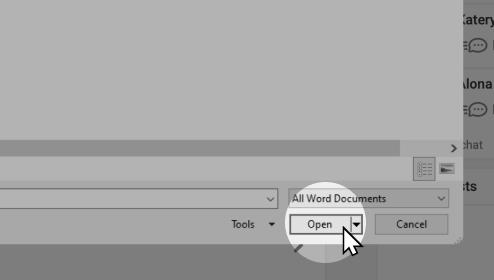
4. In the window that opens, find the photo you want to send and click on it once.
-
5. Click the «Open» button.
-
6. Click «Add image» in the window that appears.
-
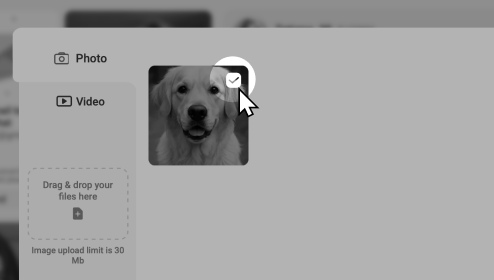
7. Select a photo in the menu for uploading photos by clicking on it once (after clicking, a check mark should appear in the right corner of the photo).
-
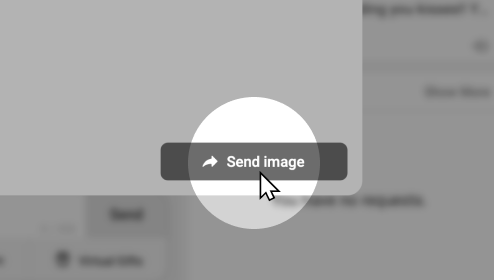
8. Click the «Send image» button to send the photo to the user.


7.7 Sending a video to a user
Sometimes a photo is not enough to describe the feeling or event experienced, then a video comes to the rescue.
They convey not 1 moment, but a whole segment. Isn’t that perfect?
How to send a video in a chat:
-
1. Go to the chat with the user.
-
2. Find the «Add files» button at the bottom of the chat.
-
3. Go to the «VIDEO» tab (just click the «VIDEO» tab in the left menu of the window.
-
4. Find and click the «Upload» button.
-
5. In the window that opens, find the video you want to send and click on it once.
-
6. Click the «Open» button.
-
7. In the window that appears, click «Add video».
-
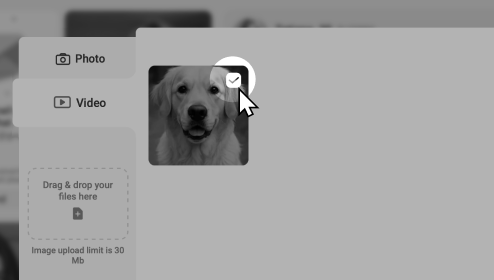
8. Select the video to upload from the menu by clicking on it once (after clicking, a check mark should appear in the right corner of the video).
-
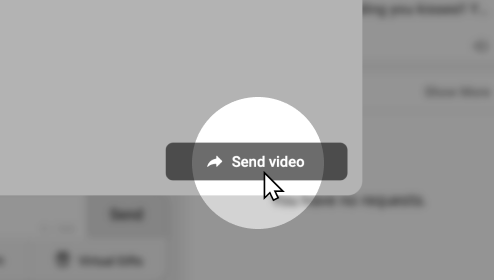
9. Click the «Send video» button to send the video to the user.


7.8 Sending stickers/smiles
We are all used to the fact that without smiles our messages are perceived in a more serious manner. Jokes and funny stories are not perceived at all without laughing emoticons. Also, everyone loves to send kisses and hearts to their loved ones. Therefore, do not neglect this functionality.
How to use stickers?
To send a sticker, you need to:
-
1. Go to the chat with the user.
-
2. Find the «Stickers» button at the bottom of the chat and click it once.
-
3. The sticker catalog will open.
-
4. Stickers are divided by topic and category, which makes use even more convenient.


How can I use Smiles?
To send emoji, you need to:
-
1. Go to the chat with the user.
-
2. Find the «Smiles» button at the bottom of the chat and click on it.
-
3. Select a smile and click on it.


7.9 A user’s profile
How to open someone’s profile:
-
1. Go to the chat with the user.
-
2. To open their profile, click on their photo in the top panel of the chat.

7.10 Adding a user to the Contact List / Removing a user from the Contact List
If you have found someone you like, it’s time to add them to your contact list.
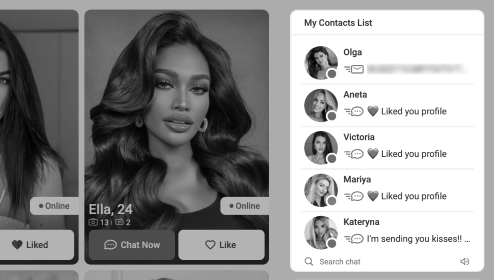
What is a contact list? Favorites are a special category of users that you can select for yourself. Usually, this category includes users that someone likes the most and you don’t want to lose them among other contacts.
You will have a separate section with them and communication will become much more convenient. All chats with users from the contact list are marked with an asterisk next to the user’s avatar, so they are easier to find.
How to add a user to the contact list?
Method 1:
-
1. Go to the user’s profile.
-
2. In the upper right corner of the profile photo, find the «Add to my contact list» star shaped button and click on it once, and the profile will be added to your contact list.

Method 2:
-
1. Go to the chat with the user.
-
2. There will be a «More» button at the top.
-
3. Click «Add to contact» list.


Why do you need this?
-
1. To single someone out from the crowd.
-
2. To make it easier to find a chat with a user you like (all chats with favorites are marked with a star next to the user’s avatar, so they are easier to find).
How to Remove the user from Contact List
If you want to remove a girl from your contact list, follow the instructions:
Method 1:
-
1. Go to the user’s profile.
-
2. At the top right profile photo, find the «Remove from Contact List» star shaped button and click on it once and the profile will be removed from your Contact List.

Method 2:
-
1. Go to the chat with the user.
-
2. There will be a «More» button at the top.
-
3. Click on the «Remove from Contact List» and the profile will be removed from your Contact List.

7.11 Block a user
If you decide that a girl has inappropriate behavior or is too intrusive, and you do not want to communicate, then you can block her.
-
How to block a user?
-
To block a girl, you need to go into a chat with her. In the top right corner of the chat, tap «More» and select «Block».
-
Or go to the girl’s profile and to the right of the photo, click on the 3 dots and select the «Block».
-
Unblock a user
There are different situations when you may decide to unblock a user. Perhaps, after an argument, you calmed down and forgave the user. You can easily unblock a user by following a few steps:
-
To unblock a girl, you need to go into a chat with her. In the top right corner of the chat, tap «More» and select «UnBlock».
-
Or go to the girl’s profile and to the right of the photo, click on the 3 dots and select the «UnBlock».


7.12 How to write a letter
If you like deeper communication than exchanging a few phrases, you will be interested in letters. It even sounds romantic. Even while in a chat, you can quickly go to the letter by pressing just 1 button «Mail».
How does it work?
- 1.
In the chat with the user, find the button «Mail» and press it.
-
With one click you get into the correspondence by letters.
- 2.
If you want to return from the correspondence in messages back to the chat, press the button «Chat».


